
 Download
Skim is a PDF reader and note-taker for OS X. It is designed to help you read and annotate scientific papers in PDF, but is also great for viewing any PDF file. Skim requires OS X 10.10 or higher.
Features
- Viewing PDFs
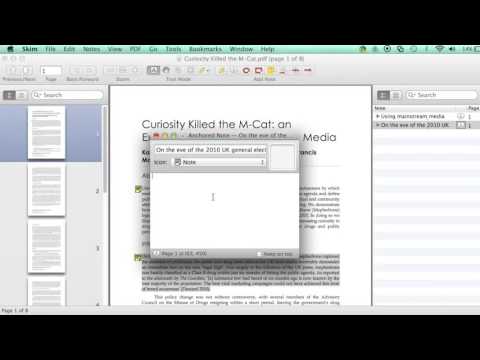
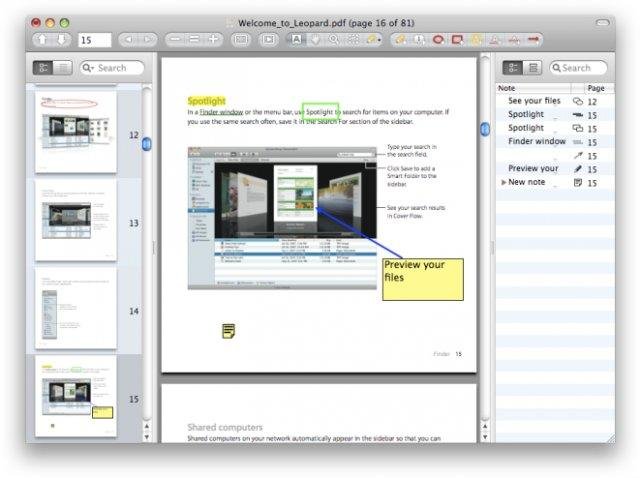
- Adding and editing notes
- Highlighting important text, including one-swipe highlight modes
- Making "snapshots" for easy reference
- Navigation using table of contents or thumbnails, with visual history
- View all your notes and highlights
- Convenient reading in full screen
- Giving powerful presentations, with built-in transitions
- Handy preview of internal links
- Focus using a reading bar
- Magnification tool
- Smart cropping tools
- Extensive AppleScript support
- Bookmarks
- Saving passwords in Keychain
- Export notes as text
- Automatic download of remote PDFs
- Support for Apple Remote Control
- Interaction with LaTeX, SyncTeX, and PDFSync
- Integration with BibDesk and other third party applications
- Spotlight support
- Highly customizable
- And much more...
Project Samples
License
BSD LicenseFollow Skim
Other Useful Business Software
CentOS Linux is experiencing End of Life on June 30th, leading to potential gaps in security. With Red Hat Enterprise Linux on Azure, IT Teams can seamlessly migrate mission-critical CentOS Linux workloads knowing they don’t have to compromise on security, scalability, reliability, and simplifying cloud management. Securely accelerate innovation and unlock a competitive edge with enterprise-grade modern cloud infrastructure.
Rate This Project
Login To Rate This Project
User Reviews
-
Very useful and delicate app!
-
Excellent PDF reader, really well done and with sound scripting support (which is much appreciated), thank you!
-
Irritated by Adobe Reader and unable to afford the full Adober suite anymore, I saw Skim recommended for academics like me who have to review lots of PDFs. Great for that purpose! No complaints...praise to the coders!
-
Great
-
I LOVE Skim, but version 1.6.9 has a bug: it places an annoying black rectangle over the part of page containing an error, which remains there after correcting and after quitting Skim. So I re-installed 1.6.8 and all is well! Thank you for your (usually faultless) work! Much appreciated.